How to use smartcards with SSH connections
With MobaXterm, you can use a certificate stored on your smartcard for your SSH sessions. MobaXterm uses the Microsoft “CryptoAPI” mechanism. Currently, MobaXterm supports only CAPI certificates; FIDO and PKCS certificates are not supported. CAPI certificates are supported by most types of Smartcards.
Follow these steps to use your smartcard:
For Yubikey users, please download and install the smart card minidriver from this address: https://www.yubico.com/support/download/smart-card-drivers-tools/
Start MobaXterm and create a new SSH session.
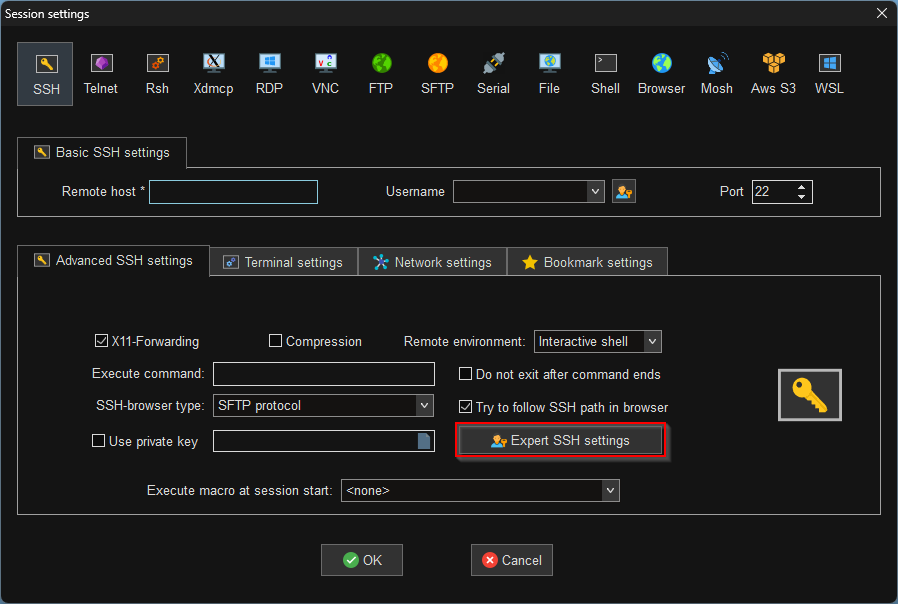
In the session settings, open the “Advanced SSH settings” tab, then click the “Expert SSH settings” button:
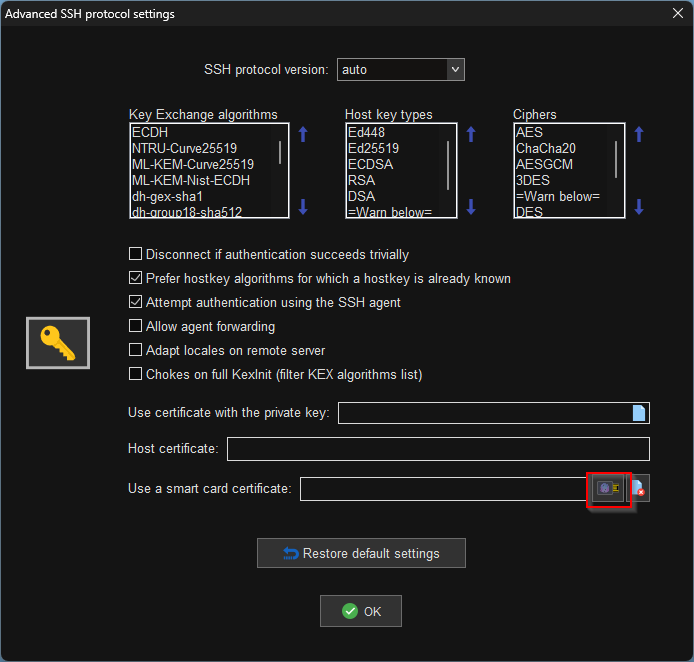
Open the “Smartcard manager” by clicking the following button:
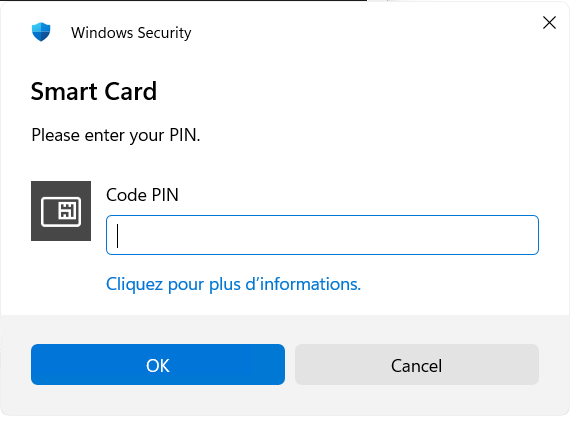
In the manager, create a new certificate. Note: your smartcard should prompt you for a PIN code. This PIN code should have been set when you received your smart card, using the smartcard provider’s software tools. Unfortunately, we cannot help you set this PIN code because the procedure depends on your Smartcard provider.
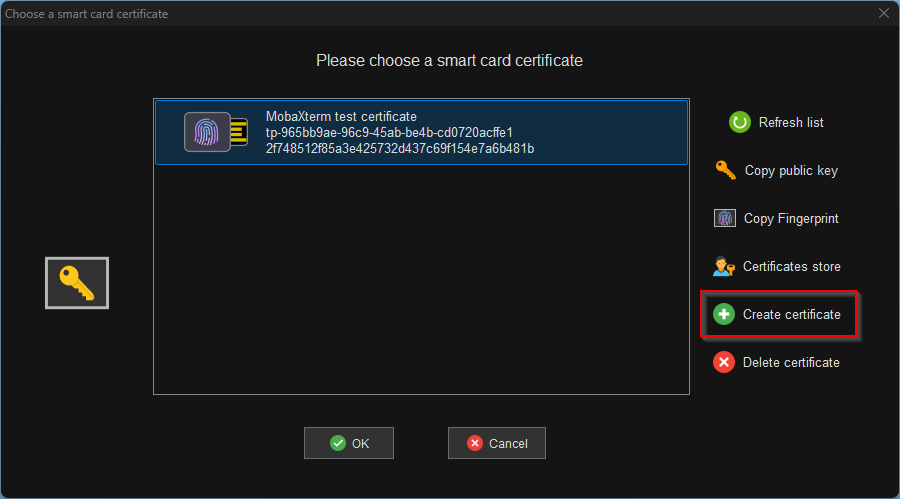
Select the certificate and click “Copy public key” to copy its public key:
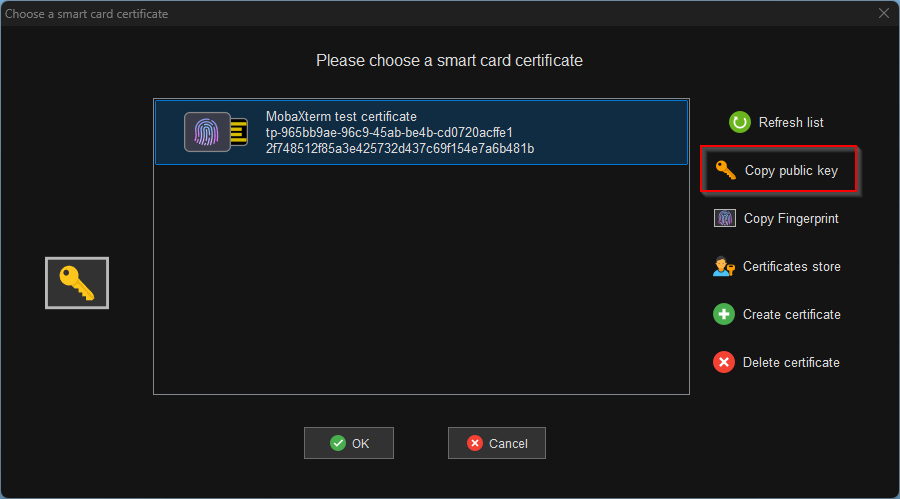
The following message is displayed:
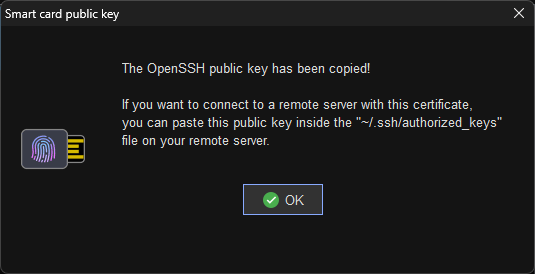
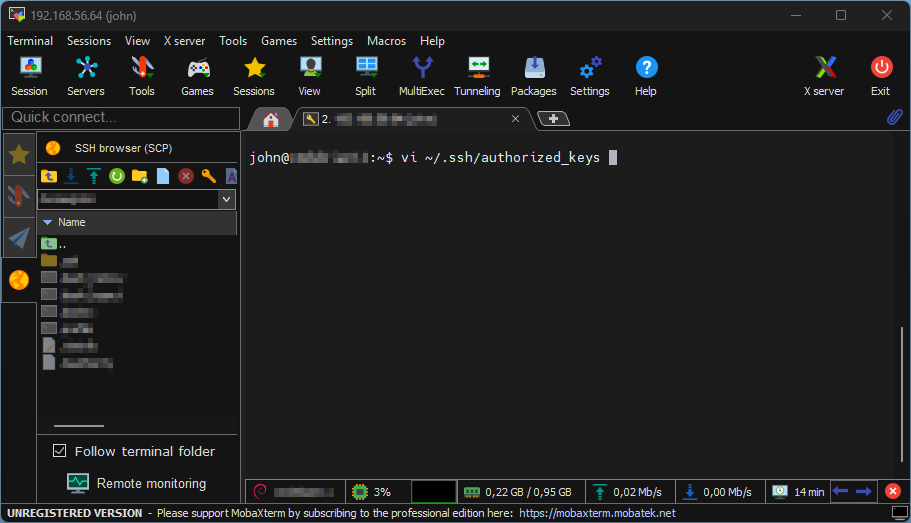
Close the smartcard manager, connect to your remote server, and paste the public key into the server’s “authorized_keys” file. This file should be located at “~/.ssh/authorized_keys” on your remote server.
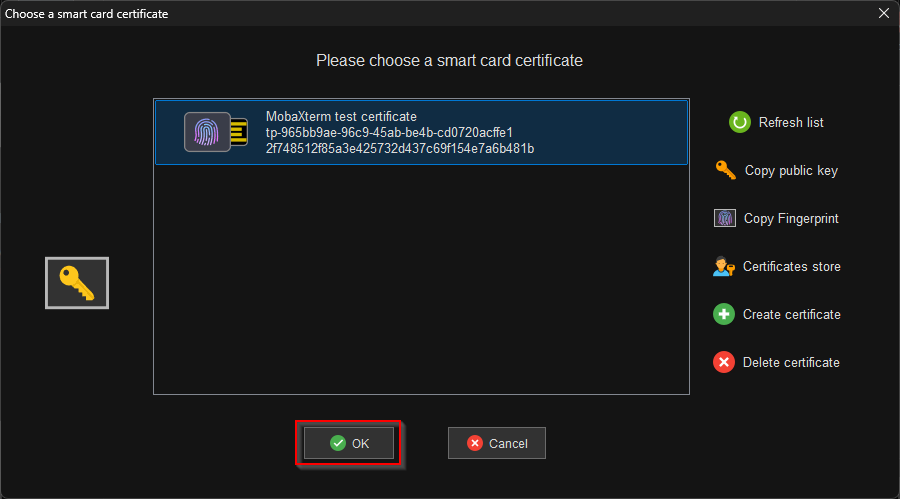
If you closed the smartcard manager, open it again, select the certificate, and click the “OK” button to use the certificate you just created:
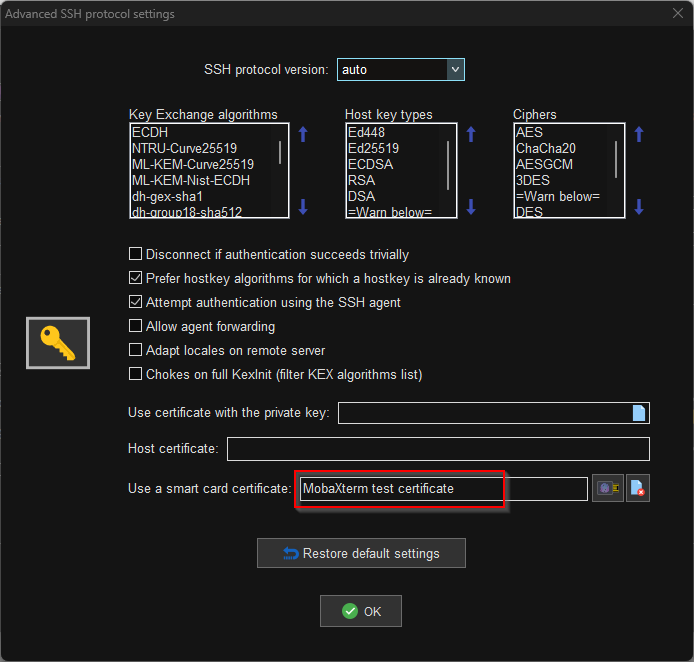
MobaXterm should display the name of the selected certificate in the expert SSH field:
Validate the settings and launch your SSH session. MobaXterm should use the smartcard certificate to connect to your remote server.
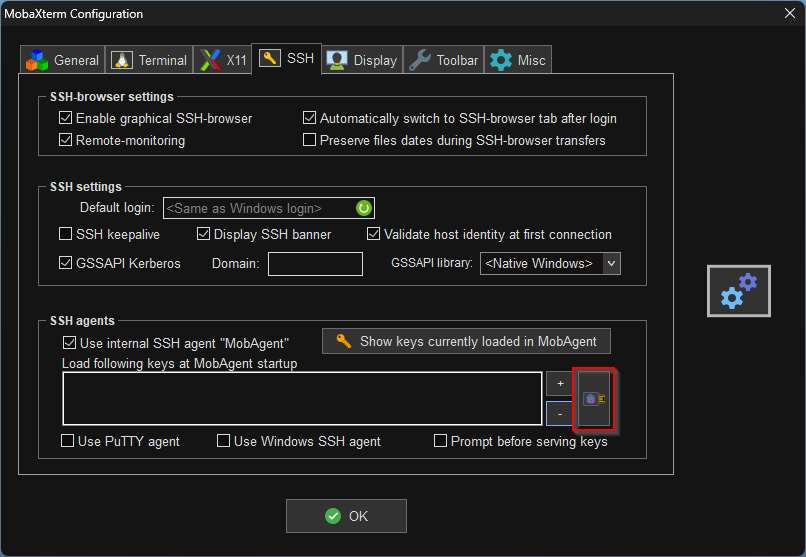
Alternatively, if you prefer to use the agent to make your SSH certificates from your Yubikey available to SSH sessions, open MobaXterm’s global settings, go to the “SSH” tab, and click the smartcard button to select the certificate you want the agent to use: